
Ready for Something New?
That’s great to hear that you are looking to refresh your content. After all, it’s important to keep your site interesting and current.
Visit our support and training page to schedule a session with the Digital Solutions Administrator.
Getting Started
Replacing Content vs Changing/Replacing the Home Page
There is an important distinction that needs to be made in order for your site to continue to receive visitors.
Replacing content on a webpage is the act of deleting old content on your front/home page and filling in the page with new content. Changing the home page (otherwise titled “front page” on your list of pages) is the act of assigning a separate page as the front page.
Note that we do not want to replace the home page with another. Instead, we simply need to replace the content that is currently displayed on your existing home page.
Why Replace vs Change?
Why is it important for SCEs to replace content vs change and assign a different page as the home page? Well, it has all to do with making your website findable for your users. Over time, the current home page of your site has built up significant authority and indexing with Google and other search engines. This helps the website rank highly in search results and makes it easier for users to find the site. If we were to replace the home page with an entirely different page, much of that SEO value could be lost, which could negatively impact the website’s visibility in search results.
Editing and Saving your Work
When you’re ready to replace the content consider doing this in a single editing session. Also please avoid saving the home page as a draft or publishing partial changes, as doing so could temporarily affect the website’s home page and create issues for visitors accessing the site.
Steps to Take
New Content Creation
In this phase you are building out what you would like your home page with the new content to look like. Steps to do so are as follows:
- Create a new page and title it something clear like “Home Page Draft” or “Home Page Revamp”
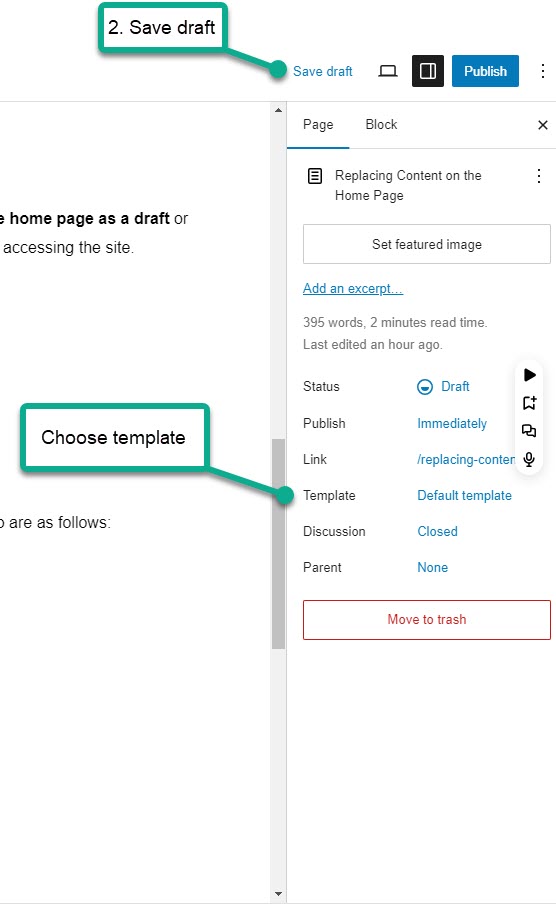
- Save this page as a draft by selecting the Save draft link.
- Match your page template to that of your home page. Instructions to do so are as follows:
- Select the Page pane on your right sidebar
- Select the link to the right that reads, “Default template“
- Choose the template that matches your home page.
- Note that if your home page has the Full Width Template it will also require the home page content to fit within a container block set at 1170 pixels wide.
- Edit away! Now you can add blocks and format your content while following usability, accessibility, and branding rules.
- Save your work by selecting Save draft. This page should not be saved in any other way unless you need to share the webpage with anyone for approval/feedback. If so, please follow the steps outlined in Sharing Your Work.
Replacing Content
In this phase you have already created your draft and received the necessary approval to publish the new content. Steps are as follows:
- Delete all of the content on your home page and do not save.
- While keeping the Home Page open on your browser, open a separate tab and pull up your draft page.
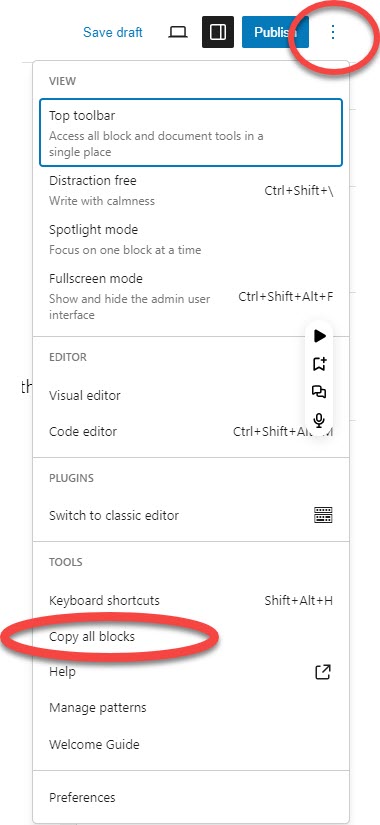
- On your draft page, open Options by selecting the three ellipses from your top right sidebar.
- Scroll to the TOOLS section and select Copy all blocks.
- Go back to your home page that has the deleted content and click into the empty editor.
- Right click the screen and select paste. Now you should see all of your hard work on the home page!
- Select Save to make the edits final.
Accessing Old Content on the Home Page
If for some reason your design isn’t working out but you have already deleted the contents you can always access the revision history and revert your page to the former draft.